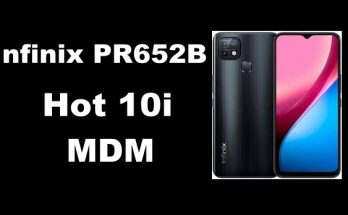
Infinix MDM (Mobile Device Management) is a security and control system that Infinix (like Tecno and Itel) installs on some of its smartphones — especially corporate, demo, or carrier-locked devices.
Here’s a breakdown:
🔍 What It Does
MDM lets an organization (like a company, school, or retailer) remotely manage and control the phone.
It can:
- Restrict access to certain apps or settings
- Lock or wipe the phone remotely
- Prevent factory resets or flashing
- Track or monitor device usage
- Control network or SIM card use
🏢 Who Uses It
- Companies or schools that give employees or students Infinix phones for official use
- Retailers who use demo units in stores
- Carriers or distributors that want to control or protect stock devices
⚠️ If You Bought a Used Infinix Phone
If your phone shows messages like “This device is managed by MDM” or “Device locked by organization”, it means it’s still tied to an MDM server.
You can’t remove MDM legally unless you are the administrator (owner of the organization account that enrolled it).
Bypassing it without authorization is illegal and may void your warranty or brick your phone.
Would you like me to explain how to check if your Infinix phone has MDM or how to contact Infinix to remove it legally?
What you should do (safe & legitimate)
- Contact the organization/IT admin that enrolled the device — they can remotely unenroll/remove the device.
- Contact the seller or previous owner and ask them to remove the device from their management console.
- Contact Nokia or your mobile carrier / an authorized service center and provide proof of ownership — they can advise next steps.
- Gather proof of purchase (receipt, invoice, bank statement, order number, seller username from marketplace).
- On the device, check for management signs (safe checks below) to confirm it’s MDM-managed.
Safe checks you can run on the phone
(These won’t remove the lock; they only confirm whether management is present.)
- Find IMEI: dial
*#06#or Settings → About phone → Status. - Settings → Accounts / Users & accounts — look for a “Work” account or corporate email.
- Settings → Security → Device admin apps (or Device administrators) — see if an admin app is active.
- Settings → About → Device management / Enterprise / Company Portal — may show the enrolling MDM.
Tell me the Nokia model and Android version if you want the exact path for your device.
What to prepare before contacting support / seller / IT
- Device model and exact variant (e.g., Nokia G21).
- IMEI and serial number (S/N).
- Proof of purchase (photo or PDF of receipt, order confirmation, payment record).
- Date you bought it and where (store, marketplace, seller name).
- Your contact details and the account (email) you want the device associated with.
- If the device was company-issued, the name/email of the issuing organization (if known).