


First, you will need to download the device firmware compatible with your phone or you can download it from here, but you must check your phone’s version first to avoid bricking the device.
Itel A12 Firmware Links
- Itel_A12_SP7731CEB_V022_20170510_6.0_SPD
- A12-W507A-6.0-OP-V002-20170304-RELEASE
- A12-W507A-6.0-OP-V001-20170223-RELEASE
- A12-W507-6.0-OP-V001-20170122-PRODUCT
- A12-W507AC-6.0-ZA-V001-20170627-RELEASE
- A12-W507A-6.0-OP-EG-V041-20171113
Next, you will need this driver for connection. Download it here;


Lastly, you will need the tool. We will use the Factory Flasher tool and you can download it here;
This Tool is for iTel A11, A12, A13, P12, and A42 Plus.

- Extract all the files, the firmware is in the PAC file.
- Install the drivers.
- Open the extracted Factory flasher tool.
- You will find three folders, open the bin folder and locate the factory flasher and launch it.
- Follow the below steps carefully, and remember to connect in download mode press the volume down, and insert the USB cable.
NB: The steps below are in three stages, after each stage you remove battery, insert back, press vol down and connect usb cable.
Before beginning, you first load the packet and select the PAC file you wish to flash to the device, and press the PLAY icon on the tool.
After successful loading of the PAC file, you follow the steps below.

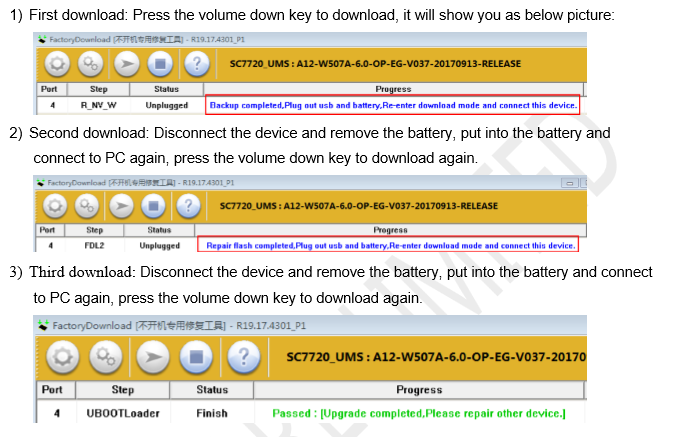
Once it finishes flashing you will get the Passed message and your device is now successfully flashed.
Itel A12 Hang on Logo solved!!!
Read also,
- Itel P13 Hang on Logo | Reboot to Fastboot Fix | Itel P13 Firmware 8.1.0
- MRT 2.60 Crack with KeyGen 1000% TESTED | MRT 2019 Crack Free
Itel A12 Core Specifications
- Model: iTel A12
- OS: Android 6.0, Marshmallow
- Chipset: Spreadtrum
- Processor: 1.2 GHz Quad Core Cortex A53, GPU-Mali
- Body Dimensions: 145.5 * 73.5 * 9.5 mm
- SIM: Dual (SIM standby) – Micro/ Nano
- Display Size: 5.0 Inches
- Display Type: IPS Capacitive Touchscreen
- Screen Resolution: 480 x 854 pixels
- RAM: 512 MB
- Internal Memory: 8 GB
- Card Slot: Yes, micro SD, Expandable by up to 32 GB
- Primary Camera: 5 MP – Features: Pictures, Videos, HDR, Geo-tagging, face detection, panorama
- Flash Support: Yes, LED
- Video Recording: Yes
- Secondary Camera: 0.3 MP with Flash
- Battery Capacity: 2400 mAh Li-Ion Non-Removable
- 3G Bands: WCDMA 850 / 900 / 1900 / 2100
- 4G Bands: N/a
- Bluetooth: Yes, V4.2, A2DP, LE
- GPS: A-GPS, GLONASS
- NFC: N/a
- USB: micro USB v2.0


Tech GURU